On a single Puzzle page, if you have collected all available pieces for that Puzzle, instead of the grid that fills up as you collect the Puzzle Pieces, you will see an interactive area with all the pieces shuffled and randomly rotated:
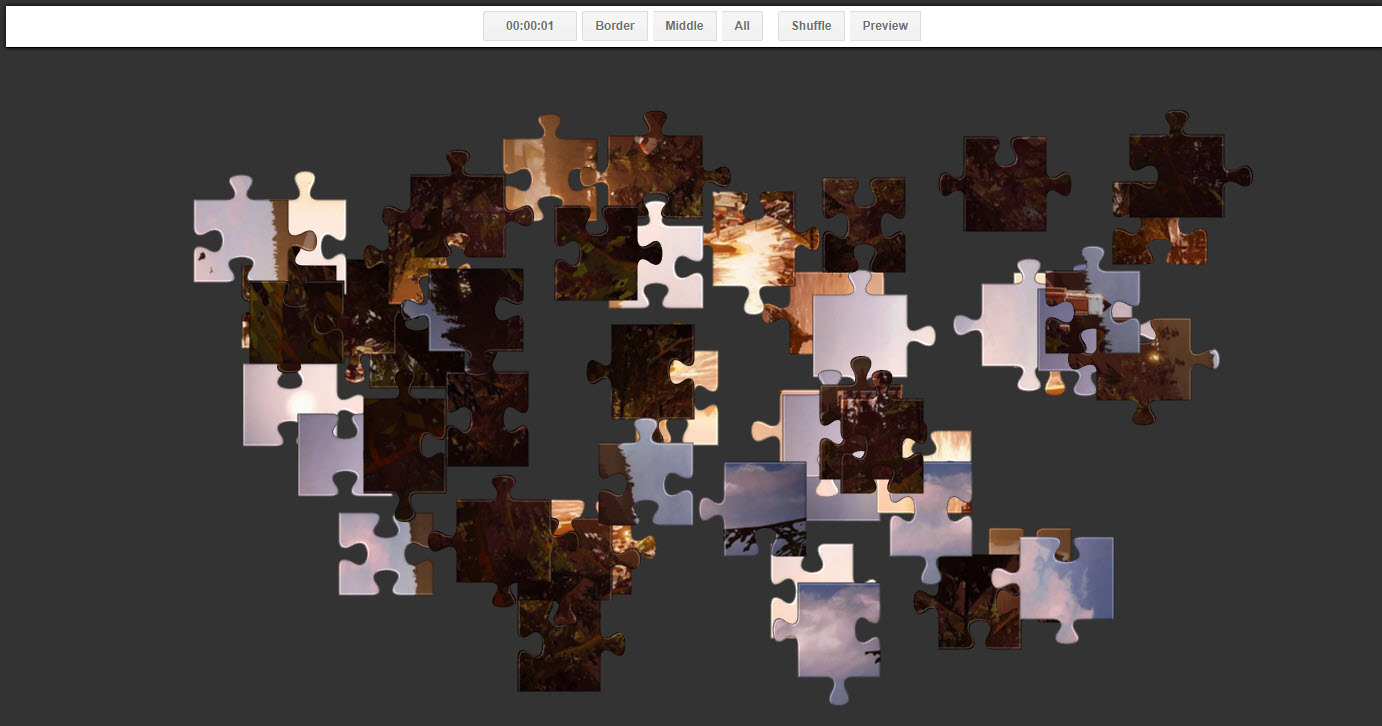
At the top of the frame you will see a Menu Bar with various elements:
Timer – A timer that begins at 00.00 and counts up in seconds, showing the total time it takes you complete the Puzzle.
Border– Click this to show only the border/edge Puzzle Pieces and hide the middle Puzzle Pieces.
Middle – Click this to show only the middle Puzzle Pieces and hide the border/edge Puzzle Pieces.
All – Click this to show all Pieces.
Shuffle– Click this to randomly shuffle the pieces. BE CAREFUL! This will essentially reset the puzzle and will also include pieces you’ve already connected in the shuffle.
Preview– Click this to toggle showing a low-opacity preview of the completed image behind the pieces. This allows you to more easily figure out where each Puzzle Piece goes and gives you a better sense of the size of the completed puzzle.
Here’s how to interact with the Puzzle:
- To move a Puzzle Piece click and drag it (or hold your finger on it and drag it if on mobile or tablet)
- To rotate a Puzzle Piece, right-click it (or just tap it once if on mobile or tablet). This will rotate it by 90 degrees clockwise.
- Connecting pieces will snap together automatically when in close proximity.
- When pieces are connected, you can drag around that whole completed section.
When you have completed the Puzzle, a modal will pop up showing you completed time:
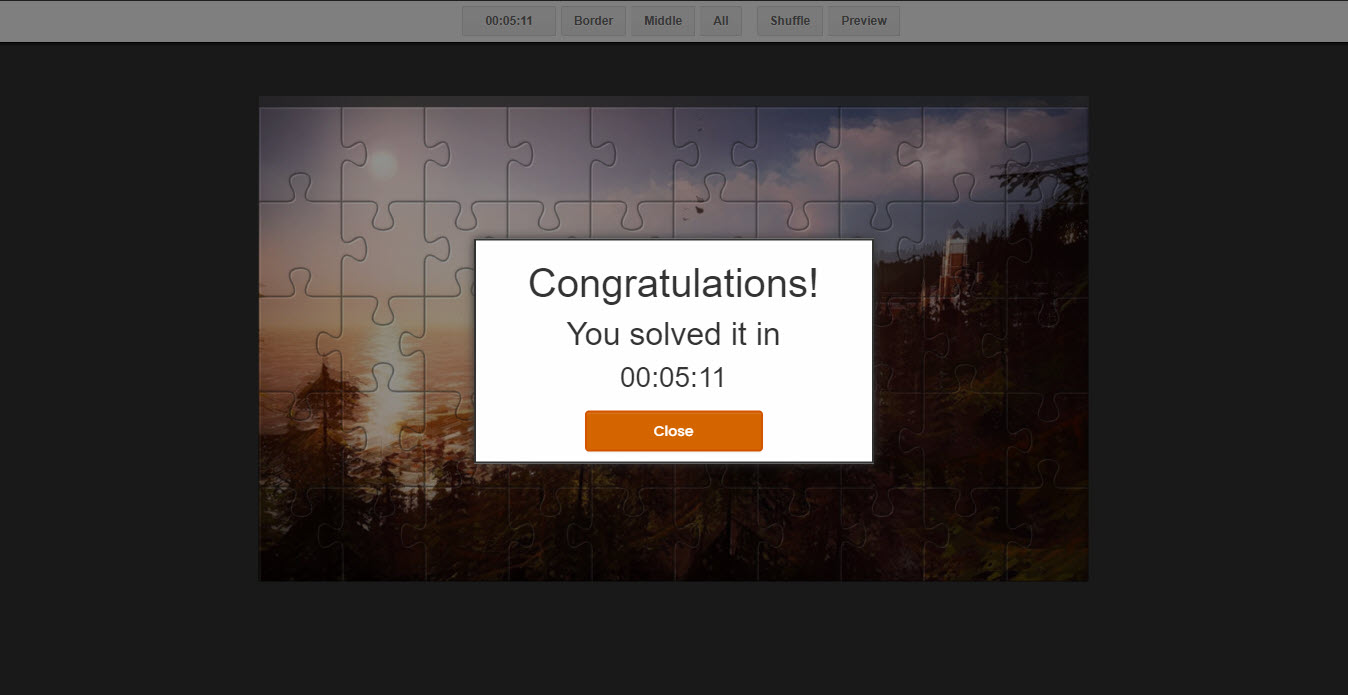
There is currently no system to save user times (it may be added in the future), so make sure to grab a screenshot and prove your skills!